Reader Setup
TrakRF pairs with supported RFID readers directly from the browser using Web Bluetooth (Web BLE). No driver install, no companion app — you click Connect Device, pick your reader from the OS pairing dialog, and you're scanning.
Before you start
Browser support
Web BLE is a Chromium feature. TrakRF works in:
- Google Chrome (desktop and Android)
- Microsoft Edge
- Opera
- Bluefy (iOS/iPadOS) — free from the App Store. iOS Safari doesn't expose Web BLE, and Chrome/Edge on iOS are Safari under the hood, so Bluefy is the only option on iPhone and iPad.
Desktop Safari and Firefox do not support Web BLE. In place of the connect button they show a banner naming the browsers that work on your platform, and TrakRF distinguishes the reasons it can't reach a reader — an unsupported browser, a browser with Web Bluetooth switched off, a machine with no Bluetooth adapter, or a page served over plain http:// each get their own explanation.
Bluetooth permissions
- Desktop — make sure Bluetooth is on in the OS and the browser has permission to access it.
- Android — Chrome needs Location permission on first pair (Android ties BLE scans to location). Grant it when prompted; you won't be asked again.
- HTTPS required — Web BLE only works over HTTPS. The hosted TrakRF app is HTTPS by default, so this only matters if you're running a local build.
Supported readers
TrakRF currently supports the CS108 handheld from Convergence Systems (UHF, BLE).
The Convergence CS463 fixed reader shares the CS108 API and has a BLE radio, but in practice it's driven over its HTTP API / web UI rather than Web BLE. Fixed-reader workflows are out of scope for this guide.
Pair your reader
-
Power on the CS108 — hold the power button for ~3 seconds until the green power LED lights solid. The Bluetooth indicator starts flashing automatically on power-up, meaning the reader is advertising and ready to be discovered; there's no separate pairing-mode button.
First-time batteryA fresh CS108 battery wants roughly a 4-hour initial charge. The charge LED is red while charging and goes out when full. Seat the battery with its metal contacts facing down.
-
In TrakRF, open Settings (left nav). The page has a Device Connection card at the top.
-
Click Connect Device.
-
Your browser opens the Web BLE pairing dialog. Pick your reader by name — it advertises as
CS108ReaderXXXXXX, whereXXXXXXis the last six hex digits of its Bluetooth address — and click Pair.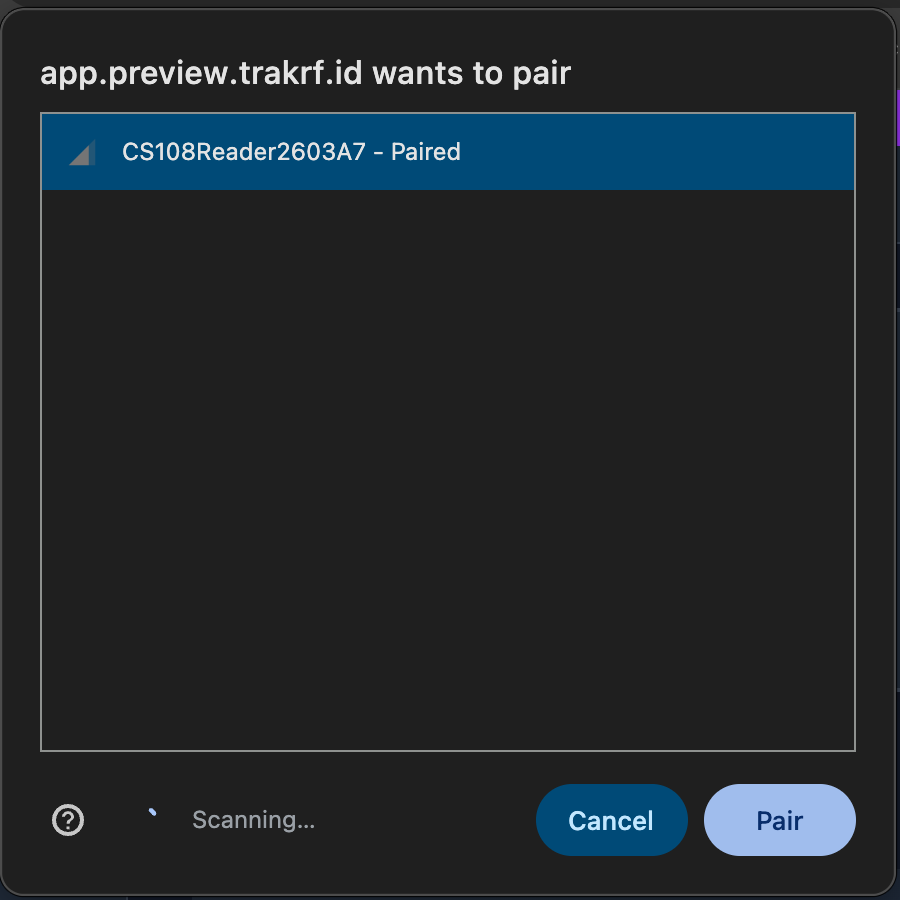 On Windows, expect no name here the first time
The dialog will most likely offer your reader as Unknown or unsupported device beside a string of numbers. That is normal and the reader is fine — see Windows: the reader is listed unnamed the first time below before you cancel the dialog.
-
The page-status chip in the top-right flips from Disconnected (red) to Connected (green), and the Device Status pill in the left sidebar updates to match.
-
The reader is now paired. OS-level pairing happens once per device; from then on, clicking the status button in TrakRF reopens the browser's connect dialog with the reader already listed — just select it and confirm to reconnect. You only need to re-pair through System Settings / Control Panel if you explicitly forget the device.
Windows: the reader is listed unnamed the first time
On Windows, a CS108 that hasn't yet been paired in Windows itself is offered in the browser's dialog without a name — as Unknown or unsupported device followed by a string of numbers, rather than as CS108ReaderXXXXXX. Nothing is wrong and the reader is not unsupported. Windows doesn't hand the browser the device's name until the two have been paired at the OS level, and the browser fills the gap with that label. This is the single most common reason a first-time Windows user cancels the dialog.
Those numbers are the reader's Bluetooth address, and it is printed on the serial-number label on the back of the antenna as BT Mac Addr. Check the two against each other — that is how you know you're selecting your own reader rather than a colleague's CS108 switched on in the same room — then select it and click Pair.
To get a legible name instead, add the reader in Settings → Bluetooth & devices before you connect, entering PIN 0000 if Windows asks for one. The browser's dialog then lists it as CS108ReaderXXXXXX - Paired from that point on. Two things to know before you try:
- Disconnect from TrakRF first. A Bluetooth LE device talks to one host at a time, so while the browser is holding the reader, Windows' own device search won't find it at all — you'll get an empty list and conclude the reader is broken.
- This step is worth doing for the name alone. We've also seen a first connect on Windows fail until the reader was paired this way, so if the browser dialog won't connect, do this before troubleshooting anything else.
Adjust basic settings
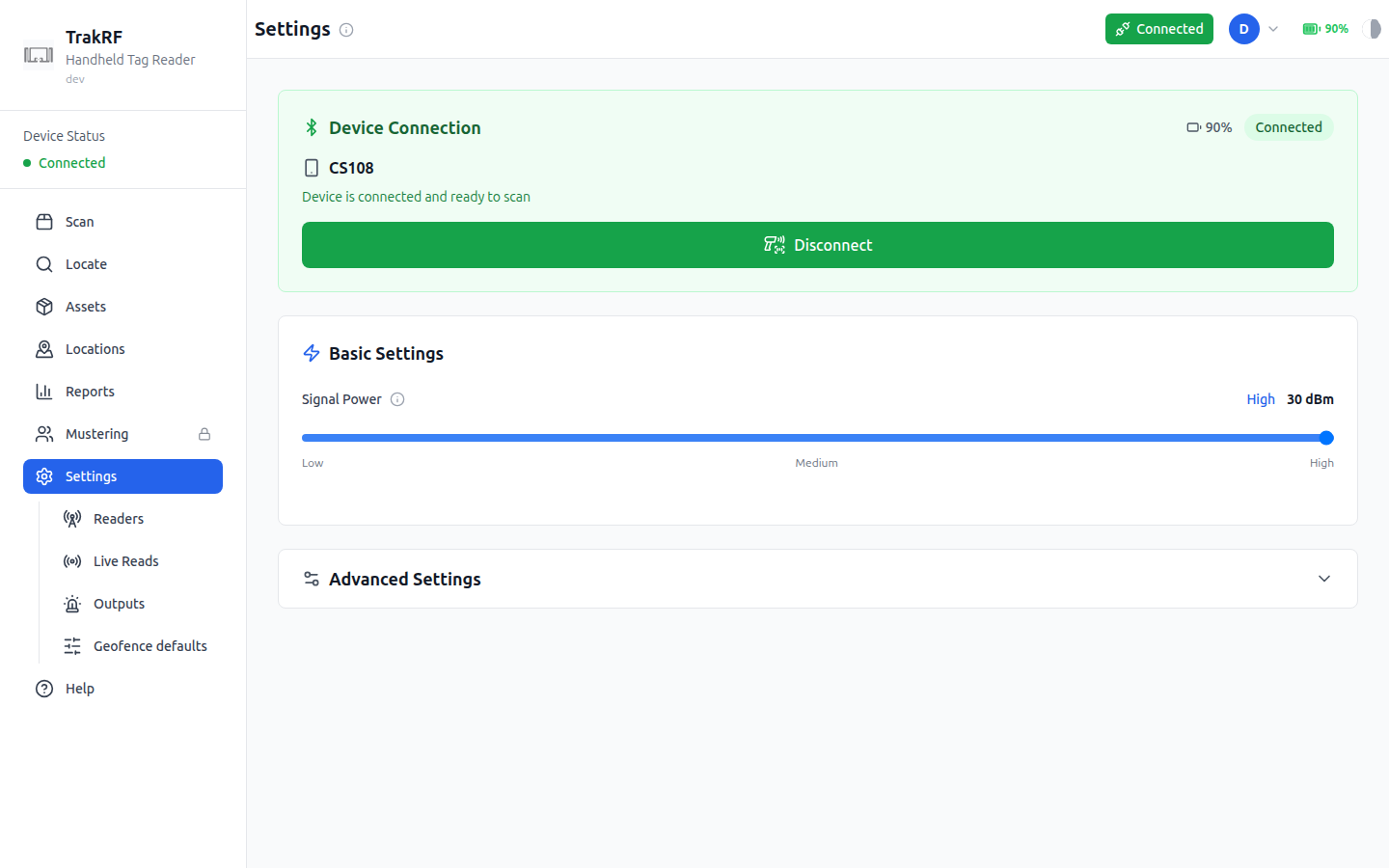
Once connected, the Basic Settings card on the same page exposes:
-
Signal Power slider — controls the reader's transmit power in dBm EIRP. The CS108 supports roughly +10.0 to +30.0 dBm (and up to +31.5 dBm in some regions / with certain power supplies), so the practical range is constrained by your regulatory region — FCC, ETSI, etc. The slider is marked Low / Medium / High and shows the current value (e.g.
30 dBm) on the right. Higher power = longer read range, but also more cross-reads from neighbouring shelves. Start at the max and dial back if you're picking up tags you don't want.noteThe on-screen slider currently runs from 0 to 30 dBm; alignment with the hardware's real floor of +10 dBm is in progress.
The Advanced Settings section (collapsed by default) holds session/query tuning for denser environments. Most users won't need to touch it.
Troubleshooting
Most pairing and connection issues resolve with the same small set of steps. Try them in order:
- Power-cycle the reader. Hold the power button until the green LED goes out, wait a few seconds, power it back on. The BLE indicator should start flashing again.
- Reload the TrakRF tab, then click the status button to retry the connect. Web BLE sometimes drops silently after sleep/resume — especially on macOS.
- Restart the host's Bluetooth stack. Toggle Bluetooth off and back on in the OS (or use the airplane-mode trick on mobile).
- Forget and re-pair. Open your OS's Bluetooth settings — System Settings → Bluetooth on macOS, Settings → Bluetooth & devices on Windows, the Bluetooth panel under Android/iOS settings — find the
CS108ReaderXXXXXXentry, remove/forget it, then run through the pair flow above from scratch. Disconnect from TrakRF before you do: the OS can't see the reader while the browser is holding it. - Check battery seating and charge. A low battery can let pairing succeed and then fail mid-scan. Re-seat the pack (metal contacts down) and confirm it's charged — red LED while charging, dark when full.
- Try a different browser profile. Stale site permissions are the usual cause of "it worked yesterday." A fresh profile sidesteps them without touching your main one.
What's next
- Asset Management — register assets and run your first scan.
- App Tour: Settings — visual reference for every control on this page.