Assets
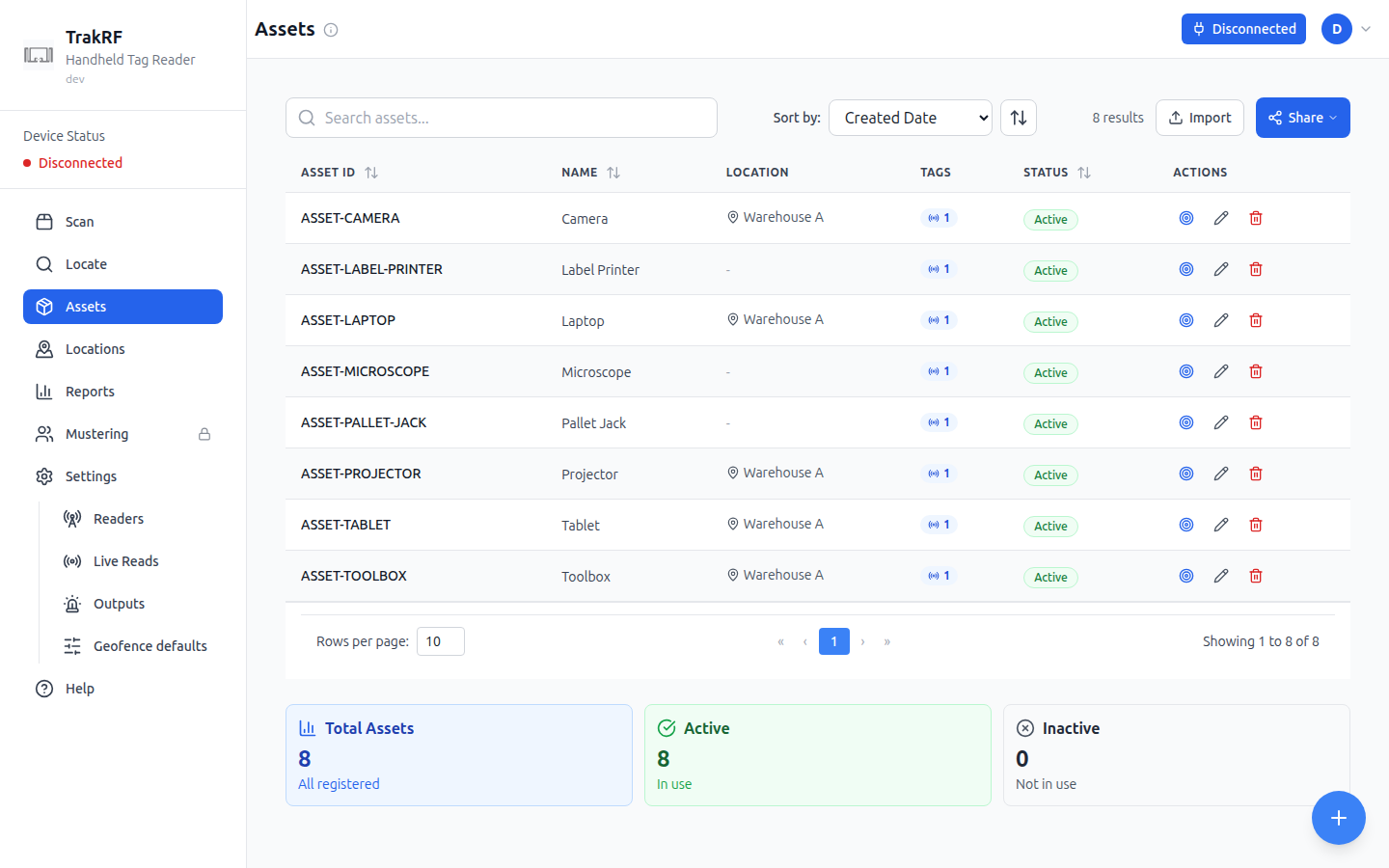
Desktop
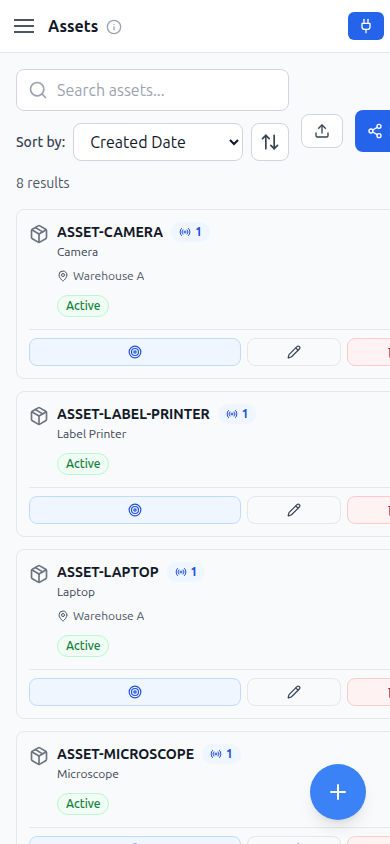
Mobile
What this page does
Assets is the catalog of things you're tracking. A search field, a sort-by dropdown (Created Date by default, with a direction toggle), an Import button, and a Share button sit above the list. Each row shows the asset ID, name, assigned location, a tag count, and an Active/Inactive status badge, with per-row locate, edit, and delete actions; a floating + button opens the create form. Footer cards summarize counts: Total Assets, Active (in use), and Inactive (not in use). A fresh workspace with nothing registered yet shows a Create Asset call-to-action instead of the table ("No assets yet — Get started by adding your first asset"). On the narrow mobile layout each row and the footer cards are wider than the viewport; the screenshot above shows the initial, unscrolled view, and the Active/Inactive badge and edit/delete actions mean scrolling right.
How it fits in the app
Assets is the stable record that scanning workflows refer back to: each asset has at least one RFID tag EPC and optionally a barcode, a home location, and metadata. Scan and Locate match scanned tags against these records — a match feeds the Assets tile on Scan and the Found / Missing tiles once a reconcile list is loaded; Reports rolls movement history up per asset.