Locations
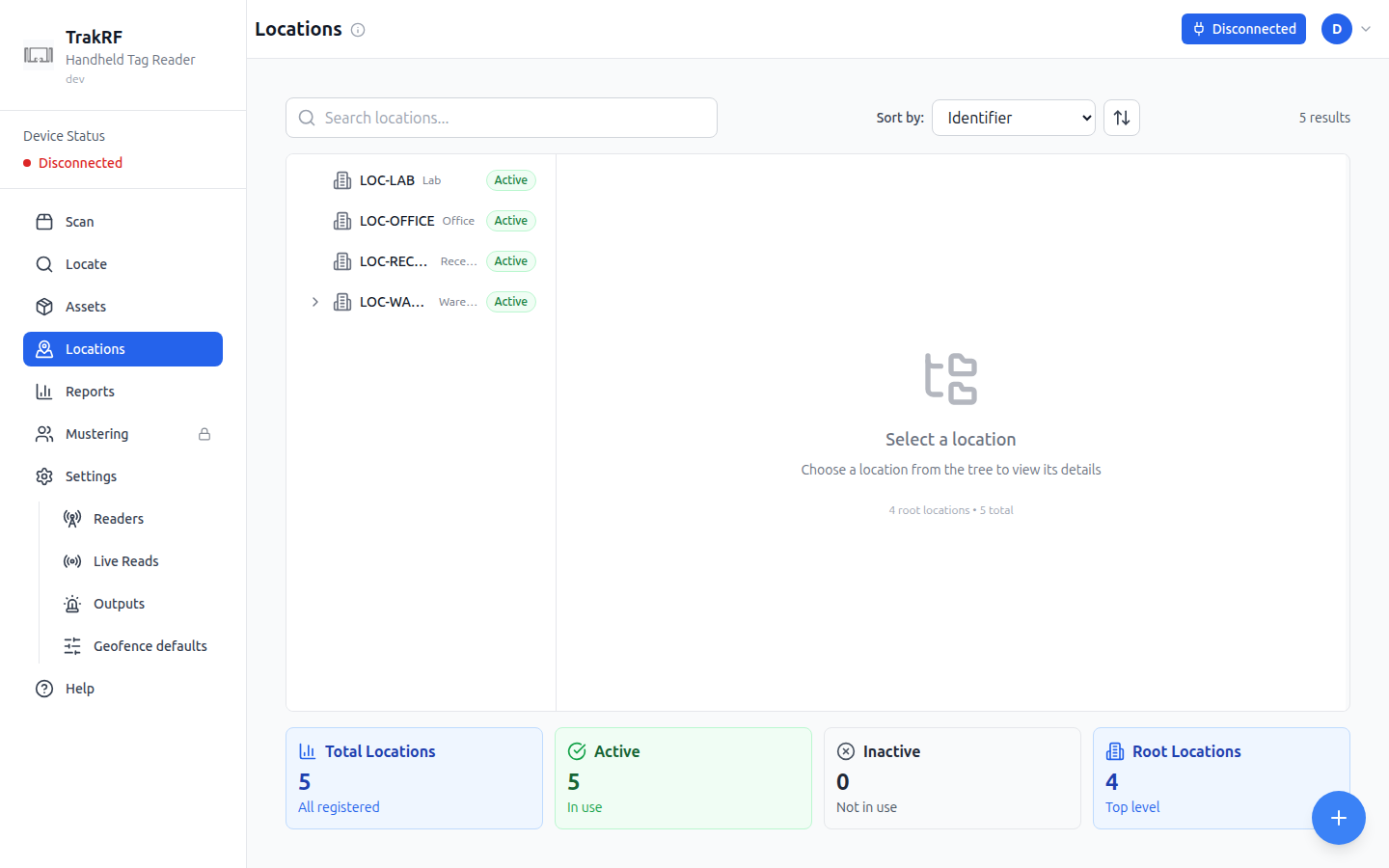
Desktop
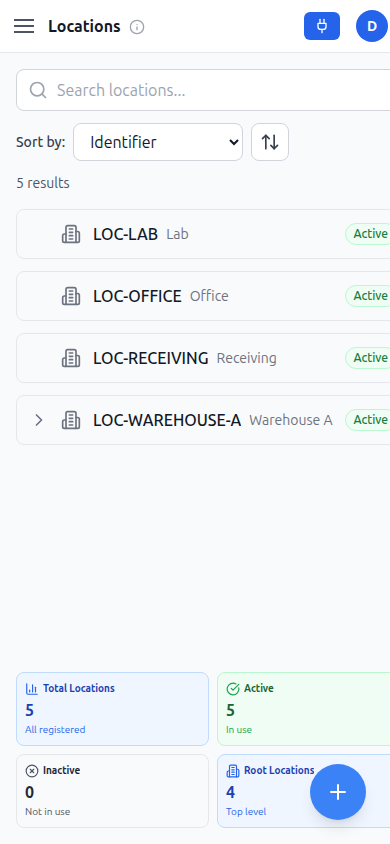
Mobile
What this page does
Locations lets you model the physical places assets live — buildings, rooms, shelves, vehicles — as a hierarchical tree. The left column searches and lists locations, each row showing its identifier, name, and Active/Inactive badge, with a sort-by dropdown (Identifier, Name, or Created Date) above it. The right column shows details for whichever row is selected: identifier, name, description, linked RFID tags, and a validity period, with Delete, Add Sub-location, Move, and Edit actions; before anything is selected it prompts "Select a location — Choose a location from the tree to view its details." A floating + button creates a new location, and a fresh account with nothing set up shows "No locations found. Create a root location to get started." Footer cards summarize Total Locations, Active, Inactive, and Root Locations (top-level entries). On the narrow mobile layout the row list and footer cards are wider than the viewport; the screenshot above shows the initial, unscrolled view, and the Active/Inactive badge and the right-hand footer cards mean scrolling right.
How it fits in the app
Locations give Assets a home: each asset can be assigned to one, and Scan can stamp a scan with the current location — picked up from a location-marker tag, shown on this site as "No location tag detected." Reports uses these locations to produce movement history and "last seen" summaries.